Utterfinch
Utterfinch for Mac
Hold a key, talk, and Persian appears in any Mac app. The free plan runs on your Mac, even offline, and needs no account.
What you need
- macOS 14 or later
- Apple silicon (M1 or newer)
- About 2.5 GB for the speech model, downloaded once
Version 0.1.0 · disk image (.dmg)
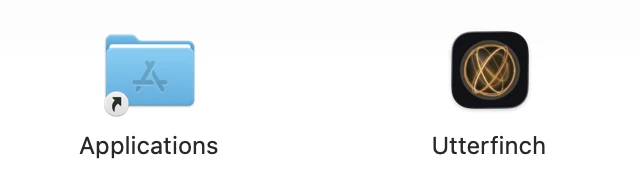
Open the file and drag Utterfinch to Applications
Open the downloaded file, drag Utterfinch onto Applications, then open it from Applications.
The first time, setup downloads the speech model to your Mac (about 2.5 GB, once). Use Wi-Fi if you can.
Choose your dictation key
You hold one key and talk. The default is fn (the globe key); right ⌥ and right ⌘ are there if fn is taken. Let go, and the text is typed where your cursor is. For anything long, tap the key twice to keep listening.
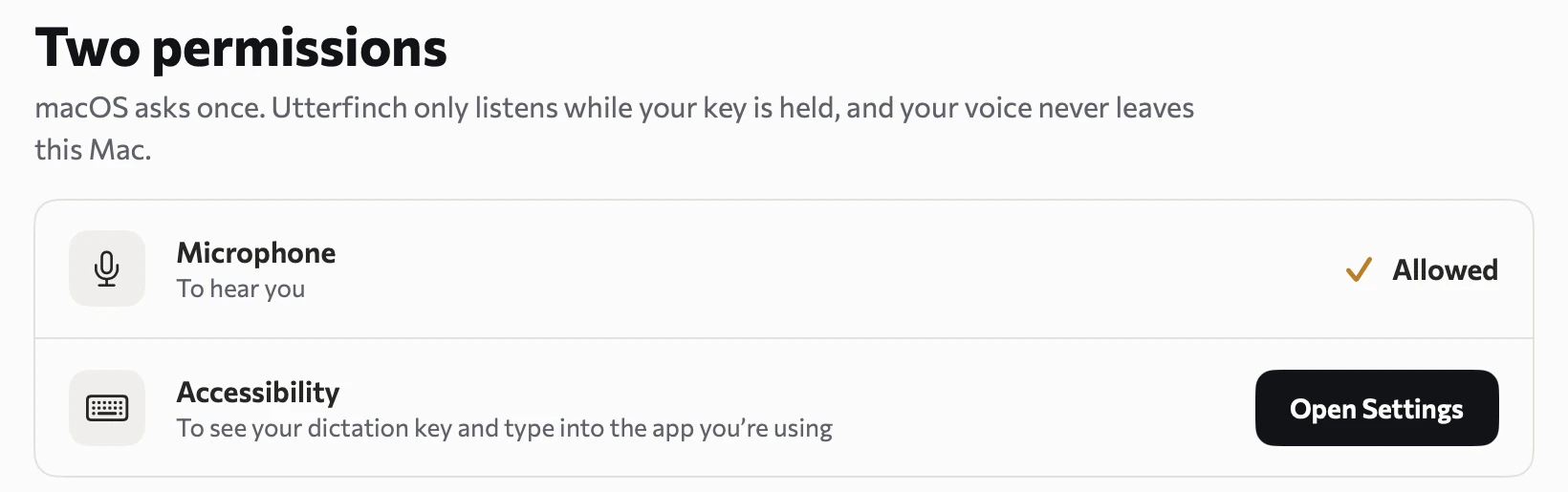
Allow two permissions
macOS asks once. Microphone is how Utterfinch hears you. Accessibility lets it type into the app you are using. Utterfinch only listens while your key is held.
Try it
Click in any text field, hold your key, say a sentence, let go. The text appears at the cursor, and the small pill offers Undo.
Pro is optional
Free needs no account. Pro adds our most accurate speech model, Persian and English in the same sentence, and the Clean and Formal styles. New accounts get 3 days of Pro to try; sign in from Account and plan in the app.
If something does not work
- Nothing is typed. Check Accessibility for Utterfinch in System Settings › Privacy & Security.
- It does not hear you. Check Microphone in the same place, and the input chosen in Utterfinch’s Settings.
- Start the setup again from Settings › Show setup again….
Questions: [email protected]. The getting-started guide shows each step with pictures.