Utterfinch
Getting started with Utterfinch
Five minutes from download to your first dictation. Utterfinch is early: Persian and English are the focus, and what you tell us shapes what comes next.
Download and install
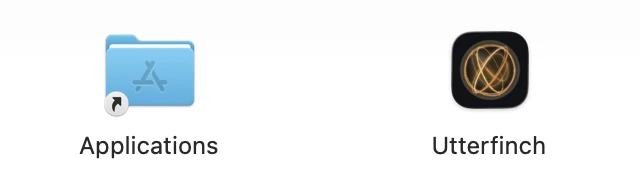
Download Utterfinch from https://utterfinch.com/download, open the file, drag Utterfinch onto Applications, then open it from Applications. It needs macOS 14 or later on a Mac with Apple silicon.
The first time, setup downloads the speech model to your Mac (about 2.5 GB, once). Use Wi-Fi if you can; the progress shows at the bottom of the setup window.
Choose your dictation key
You hold one key and talk. The default is fn (the globe key); right ⌥ and right ⌘ are there if fn is taken. Let go, and the text is typed where your cursor is.
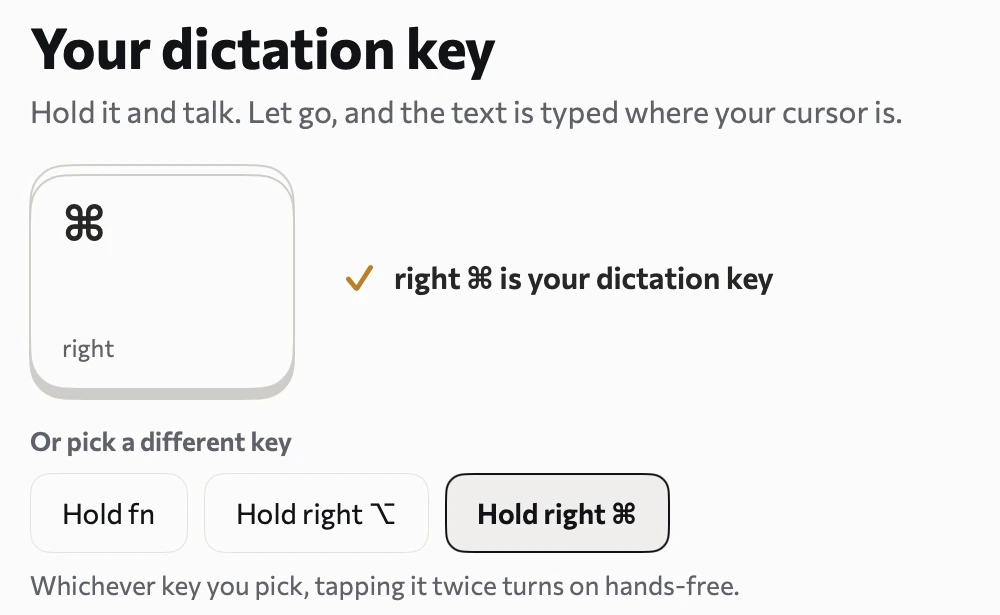
For anything long, tap the key twice to keep listening, then tap once to insert. Esc cancels.
Allow two permissions
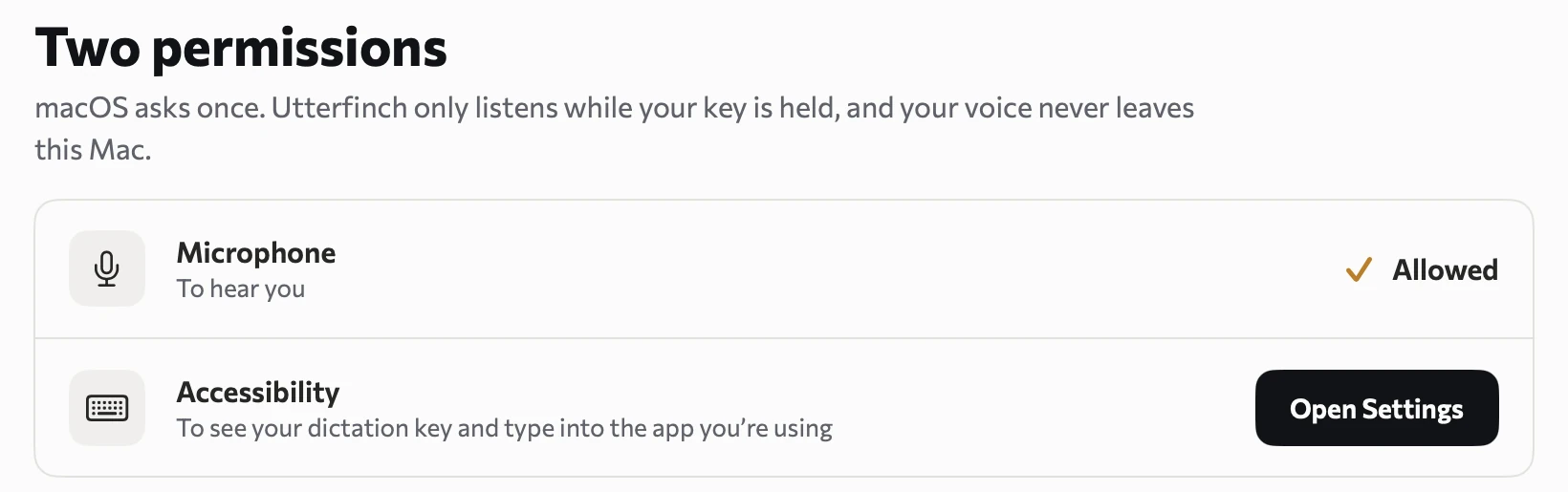
macOS asks once. Microphone is how Utterfinch hears you. Accessibility lets it see your dictation key and type into the app you are using. Open Settings takes you to the right page: switch Utterfinch on, then come back. Utterfinch only listens while your key is held.
Try it
Click in any text field, in any app. Hold your key, say a sentence, let go. The text appears at the cursor. Right after it is inserted, the small pill at the top of the screen offers Undo.
Sign in and add your invite code
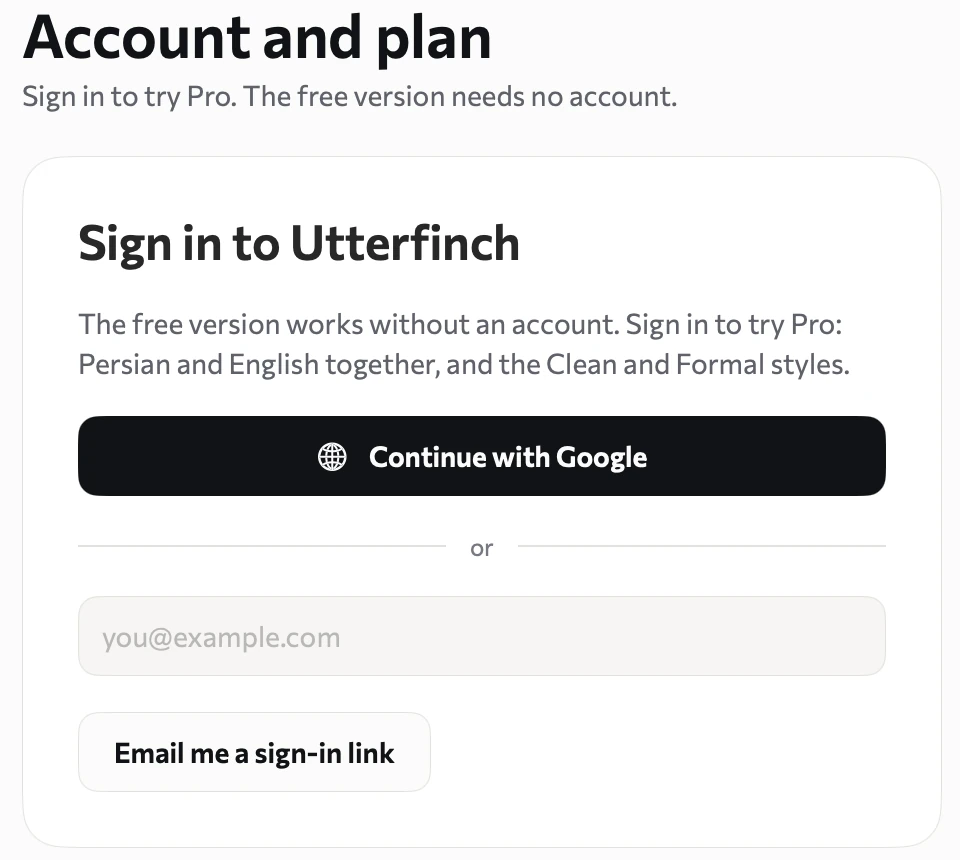
Click the Utterfinch mark in the menu bar, choose Open, and go to Account and plan. Continue with Google, or ask for a sign-in link by email.
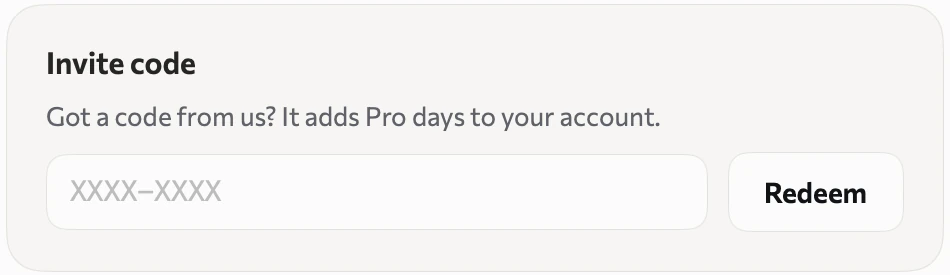
Then type your code under Invite code and choose Redeem. The plan card shows your new end date. Every account also gets a 3-day Pro trial. Pro means Persian and English in the same sentence, the Clean and Formal styles for each app, and our most accurate speech model. When Pro ends, the free version keeps working: Persian on your Mac, with your history and vocabulary intact.
Tell us what you think
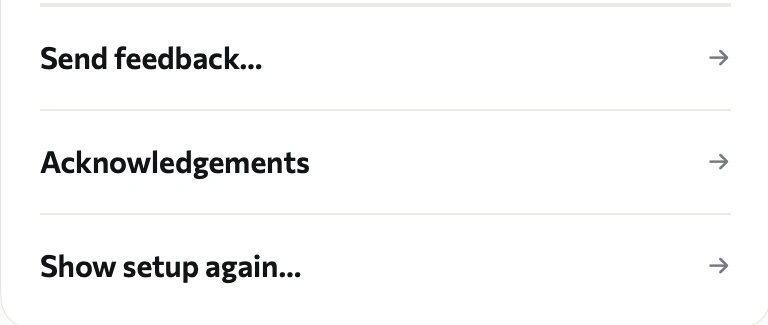
In Settings, choose Send feedback…. It opens an email to [email protected] with the app version, your macOS version and your plan. It never includes your text or audio. You can also just reply to your invitation email: it reaches us.
If something does not work
- Nothing is typed. Check Accessibility for Utterfinch in System Settings › Privacy & Security.
- It does not hear you. Check Microphone in the same place, and that the right input is chosen in Settings › Microphone.
- Your browser blocks the download. Open https://utterfinch.com/download with the https:// in front.
- Start the setup again from Settings › Show setup again….
Questions or ideas: [email protected].